Feature guides
Migration Center
The Migration Center is the AI-powered tooling that converts Polkomtel's legacy ETL estate — Informatica PowerCenter, Alteryx, SSIS, and DataStage workflows — into native DataFlow AI YAML pipelines, with automated parsing, rule-based plus LLM-assisted conversion, per-object confidence scoring, and data-parity validation.
Who uses the Migration Center
The Migration Center is used primarily by the Data Engineer persona (Anna Kowalska) and the Platform Admin persona (Katarzyna Zielińska). Engineers drive day-to-day conversions; admins oversee the overall migration program.
For Polkomtel the scope is large — 500+ PowerCenter workflows plus 50–100 Alteryx workflows, totaling roughly 550–600 assets to migrate.
| What it migrates | Source file | Engine |
|---|---|---|
| Informatica PowerCenter | .xml | rule engine + LLM fallback |
| Alteryx | .yxmd | rule engine + LLM fallback |
| SSIS | .dtsx | rule engine + LLM fallback |
| DataStage | .dsx | parser exists (rule-engine wired) |
Note
The Migration Center migrates legacy ETL tools, not SQL dialects. The upload step accepts PowerCenter XML, Alteryx YXMD, and SSIS DTSX files; a DataStage parser also exists in the engine.
Module layout
The Migration Center mounts at /migration (redirecting to /migration/import; entry src/pages/MigrationCenter.tsx, layout src/pages/migration/MigrationLayout.tsx). A left sidebar lists the four screens; a breadcrumb trail sits at the top.
+------------------------------------------------------------------+
| Home > Migration Center > Import Wizard                           |
+------------------------------------------------------------------+
| Sidebar (240px)         | Main content area                      |
|  ARROW Migration Center | +-----------------------------------+  |
|   > Import Wizard        | |                                   |  |
|   > AI Conversion        | |   (Screen content renders here)   |  |
|   > Validation Suite     | |                                   |  |
|   > Progress Tracker     | |                                   |  |
+-------------------------+--+-----------------------------------+  |
The four screens:
| Screen | Route | Purpose |
|---|---|---|
| Import Wizard | /migration/import | Upload, AI-analyze, and report on source workflow files |
| AI Conversion Dashboard | /migration/conversion | Monitor auto-conversion results by object type |
| Validation Suite | /migration/validation | Run data-parity tests, compare source vs target |
| Progress Tracker | /migration/progress | Track migration phases, velocity, timeline, risks |
Conversion pipeline — what happens under the hood
The migration engine runs a fixed lifecycle on every uploaded file: uploaded → parsing → parsed → converting → validating → validated → completed | completed_with_warnings | failed.
| Stage | What it does |
|---|---|
| 1. Parse | A tool-specific parser turns the source file into a common WorkflowAST of mappings, transformations, and connectors. |
| 2. Convert | A deterministic RuleEngine walks each transformation; 13 PowerCenter transform types have explicit conversion rules. Types with no rule, or confidence below 0.60, fall through to an LLM converter. |
| 3. Validate | A PipelineValidator runs six checks on the generated YAML — syntax, required keys, node schema, edge references, and a dangerous-SQL scan. |
Conversion is deterministic where possible. PowerCenter transform rules and their target nodes:
| Source type | DataFlow target | Confidence |
|---|---|---|
| Source Qualifier | source connector SQL push-down | 0.90–0.95 |
| Expression | sql_expression | 0.85 |
| Lookup Procedure | sql_join_pushdown | 0.65–0.85 |
| Aggregator | sql_group_by | 0.95 |
| Filter | sql_where | 0.98 |
| Joiner | sql_join | 0.90 |
| Sorter | sql_order_by | 0.98 |
| Router | conditional_branch (CASE WHEN) | 0.85 |
| Update Strategy | upsert_strategy | 0.80 |
| Union | sql_union_all | 0.95 |
The release gate: a job is marked completed only if overall confidence is at or above 0.85, no object scores below 0.80, no object needs manual review, and there are no validation issues — otherwise it is failed.
Note
Every AI output in the Migration Center carries a 0–1 confidence score. The engine distinguishes genuine LLM output from failure fallbacks: when the LLM is unavailable, conversions return conversion_source = "llm_unavailable", confidence 0.0, and requires_manual_review = true.
Screen 1 — Import Wizard
Route: /migration/import — entry src/pages/migration/ImportWizardPage.tsx.
A four-step wizard with a horizontal step indicator.
+------------------------------------------------------------------+
|  (1) Upload --- (2) AI Analysis --- (3) Report --- (4) Convert    |
+------------------------------------------------------------------+
Step 1 — Upload Files
A full-width drag-and-drop zone (dashed border, hover and drag-over states) with a Browse Files fallback. Each dropped file auto-detects its type — PowerCenter XML (orange badge), Alteryx Workflow (blue badge), or Unsupported (red badge) — and a quick parse reports the object count ("Detected: 7 mappings, 42 transformations"). Each file is shown as a card with its icon, name, size, type badge, an upload progress bar, and a Remove button. When more than one file is added, a batch indicator notes that all files will be analyzed together. The Analyze with AI button activates once at least one file is ready.
Step 2 — AI Analysis
A full-width overall progress bar plus a four-stage vertical checklist — Parsing Source Files → Analyzing Objects → Checking Compatibility → Generating Report — each stage card showing pending / in-progress (spinner) / completed (green check) state. A live, scrolling, terminal-styled Analysis Feed streams color-coded messages (info/success/warning/error) as the engine works through each workflow. The wizard auto-advances to Step 3 when analysis reaches 100%.
Step 3 — Compatibility Report
Four summary cards across the top — Total Objects, Auto-Convertible (count and %), Manual Required (count and %), and Estimated Effort (hours). Below them:
- Workflow Assessment table — one row per workflow with a complexity badge (Low / Medium / Medium-High / High / Very High), object count, auto-convert %, estimated effort hours, and source/target systems.
- Object Type Breakdown — a horizontal stacked bar chart, auto-convertible portion in indigo, manual portion in amber; object types under 50% auto-convert are flagged red.
- Risk Items panel — collapsible severity-coded cards (high/medium/low), each with a description, the affected workflow, and an expandable recommendation.
A Start AI Conversion button moves to Screen 2.
Behind the scenes
The frontend api/migration.ts posts the multipart upload to the migration-engine /upload endpoint, which runs all conversion stages inline. The engine's parsers use lxml for XML/YXMD and a proprietary text parser for DataStage; the max_upload_size_mb limit is 50 MB.
Screen 2 — AI Conversion Dashboard
Route: /migration/conversion — entry src/pages/migration/ConversionDashboardPage.tsx.
+------------------------------------------------------------------+
| [Total Objects 150] [Auto-Converted 127 (85%)] [Manual 23 (15%)] |
+------------------------------------------------------------------+
| Conversion Status by Object Type (table)                          |
+------------------------------------------------------------------+
| Converted Pipeline List (cards)   | Confidence Distribution chart |
+------------------------------------------------------------------+
Three summary cards lead the screen — Total Objects, Auto-Converted (with a green donut), Manual Required (with an amber donut) — plus average confidence.
The Conversion Status by Object Type table breaks results down per transform type (Source Qualifier, Expression, Lookup, Filter, Joiner, Custom Java, Router, Other): converted/total, conversion rate with an inline bar, average confidence, and a status of complete / partial / flagged. Flagged rows (such as Custom Java relying on proprietary Siebel CDMA libraries) get a red left-border, a red row tint, a warning icon, and a flag-reason line.
The Converted Pipeline List shows a card per converted pipeline — original → converted name (e.g. df_sap_biuro_sprzedazy_plk.yaml), a circular confidence badge (green ≥90, amber 70–89, red <70), object counts, source/target system pills, a status badge, and an Open in Design Studio link.
A Confidence Distribution histogram bins pipelines by confidence range (0-50%, 50-70%, 70-85%, 85-95%, 95-100%).
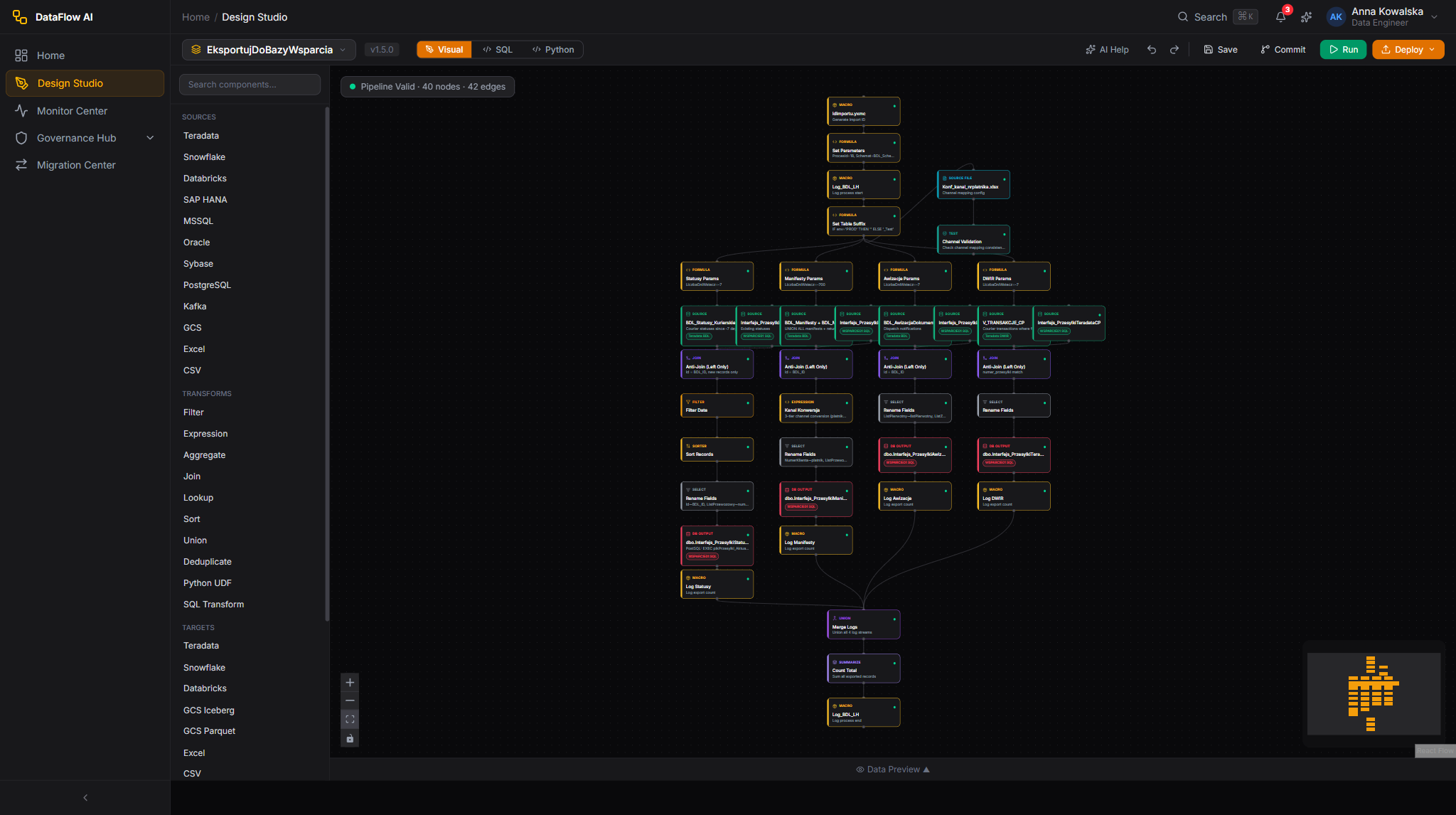
Alteryx workflows convert the same way PowerCenter does: the engine parses the .yxmd file into a common WorkflowAST, the rule engine maps each tool to a DataFlow node, and anything without a rule or below 0.60 confidence falls through to the LLM converter. Alteryx-specific constructs such as environment macros (GetEnvironmentVariable used for PROD/Test routing) are flagged for manual review rather than auto-converted, and surface as red-bordered rows in the Conversion Status table and as Risk Items in the Compatibility Report. A converted Alteryx pipeline shows a blue Alteryx source-type badge to distinguish it from the orange PowerCenter badge.
Behind the scenes
The conversion produces DataFlow AI YAML pipelines. The YamlGenerator classifies nodes into sources/transformations/targets, builds depends_on linkage from edges, and injects three default quality checks (row_count, null_percentage, duplicate) plus per-sink schema-validation checks and a low-confidence reconciliation check for any mapping under 0.80 confidence.
Screen 3 — Validation Suite
Route: /migration/validation — entry src/pages/migration/ValidationSuitePage.tsx.
The Validation Suite proves data parity between the legacy source and the converted DataFlow AI pipeline.
A Test Runner control bar at the top exposes Run All Tests and Re-run Failed, a status dot (idle / running / completed), and progress text. Four summary cards follow — Total Tests, Passed, Failed, Pass Rate.
The Pipeline Comparison Table lists each pipeline with its source and target systems, source vs target row counts, a row-count-match flag, a checksum-match flag, a column-diff count, execution time, and a pass/fail status. Failed rows are red-tinted with a red left-border and expand to reveal per-column failure detail — the column name, expected vs actual value, row index, and diff type (value_mismatch, null_mismatch, type_mismatch, or missing_row).
Behind the scenes
api/migration.ts calls the engine's /jobs/{id}/validate endpoint, which runs a six-check validation suite — YAML syntax, SQL safety (scanning for DROP TABLE/DATABASE, TRUNCATE, ALTER TABLE, EXEC, xp_cmdshell), transform coverage at or above 50%, confidence at or above 60%, source-and-sink node completeness, and mapping-issue checks.
Screen 4 — Migration Progress Tracker
Route: /migration/progress — entry src/pages/migration/ProgressTrackerPage.tsx.
The Progress Tracker gives a program-level view of the entire migration: the overall phases, conversion velocity, a timeline, and outstanding risks. It is the screen the Platform Admin uses to report migration status, with effort estimated by a person-hour model (0.25h base per mapping, 2.0h per manual review, 1.0h per LLM-assisted conversion, 0.5h testing, 4.0h integration).
Click-path — migrate a legacy Informatica workflow end-to-end
- Open
/migration/import. - Drag the PowerCenter export (e.g.
wf_E112.XML) onto the drop zone. The card shows an orange PowerCenter XML badge and a detected object count. - Click Analyze with AI. The wizard moves to Step 2; watch the four-stage checklist and the live analysis feed stream parsing, classification, and compatibility messages.
- When analysis completes, the wizard auto-advances to the Compatibility Report. Review the four summary cards, the per-workflow complexity badges, the object-type breakdown chart, and the Risk Items panel — expand high-severity items (such as Custom Java transformations needing a Python UDF rewrite) to read the recommendation.
- Click Start AI Conversion — the wizard navigates to
/migration/conversion. - On the AI Conversion Dashboard, inspect the Conversion Status by Object Type table. Flagged object types (red) need manual attention; partial and complete types are mostly automated.
- In the Converted Pipeline List, click a pipeline card's Open in Design Studio to inspect or fix the generated YAML pipeline.
- Go to
/migration/validationand click Run All Tests to verify data parity. - Review the Pipeline Comparison Table — expand any failed row to read the per-column failure detail, fix the conversion in Design Studio, then Re-run Failed.
- Track overall program status on
/migration/progress.
Migration sub-page map
| Sub-page | Route |
|---|---|
| Import Wizard | /migration/import |
| AI Conversion Dashboard | /migration/conversion |
| Validation Suite | /migration/validation |
| Migration Progress Tracker | /migration/progress |
API reference
| Concern | Endpoint / module |
|---|---|
| Upload & inline conversion | migration-engine POST /upload via api/migration.ts |
| Job list | GET /jobs |
| Job status | GET /jobs/{id}/status |
| Job report | GET /jobs/{id}/report |
| Download converted YAML | GET /jobs/{id}/download |
| Run validation | POST /jobs/{id}/validate |
| Re-trigger conversion | POST /jobs/{id}/convert |
The migration-engine is a FastAPI service (port 8091) mounted under /api/v1/migration and /api/migration. It uses rule-based pattern matching for deterministic transforms and falls back to the Anthropic SDK for complex transformations. Converted YAML pipelines are consumed directly by Design Studio.