Feature guides
Data Browser & Catalog
The Data Browser is the discovery and governance layer of the DataFlow AI Platform. It surfaces an OpenMetadata-backed catalog that lets you search, explore, and understand every table, column, and dataset across Polkomtel's heterogeneous data estate — Teradata DWH-MONA, Snowflake, SAP HANA, Databricks, and MSSQL/Sybase. It is search-first and governance-visible: PII tags, certification badges, and quality scores are always on display.
New here? What a "data catalog" is
A large company like Polkomtel stores data in dozens of different databases. Nobody can remember what is in all of them. A data catalog solves this — it is a searchable directory of every table and column the company has, no matter which database it lives in. Think of it as the library catalogue for the company's data: you search it to find what you need, then read its "card" to understand what you found.
The Data Browser is that catalogue. With it you can:
- Search for data by keyword — type "churn" and see every related table across all systems.
- Browse data grouped by business area (Customers, Billing, Network, and so on).
- Understand a table before you use it — see its columns, a sample of real rows, and statistics.
- Trust it — see whether it has been quality-checked and certified, and whether it contains private data.
- Trace where a piece of data came from and where it flows.
A few words you will see on these screens:
- Table — a grid of data, like a spreadsheet tab. Columns are its fields (e.g.
FIRST_NAME); rows are its records (one per customer). - Schema — a named group of related tables inside a database.
- PII — Personally Identifiable Information: data that identifies a real person (a name, a phone number). It is marked with a special tag because it must be handled carefully.
- Certified — a badge meaning a data steward has reviewed the table and vouches it is trustworthy.
- Lineage — the documented journey of data, showing where a table's values came from and what flows out of it.
- Profiling — automatic statistics about a column: how many rows are empty, how many distinct values it has, its smallest and largest values, and so on.
No request to engineering needed
The whole point of the Data Browser is self-service. An analyst can find, understand, and assess a dataset on their own — without filing a ticket or waiting for an engineer to explain what a table contains.
What the Data Browser does
The Data Browser answers one core question: "What data do we have, and can I trust it?" It is built around a search bar and a set of governance-aware views that let you move from a keyword to a fully understood table — its columns, sample rows, profiling statistics, lineage, and quality rules.
Route base: /data-browser. Entry file: src/pages/DataBrowser.tsx. The catalog is backed by the metadata-service CatalogController and an OpenMetadata-compatible catalog.
Design principles
- Search-first — the search bar is the primary interaction; everything else is secondary navigation.
- Progressive disclosure — the landing page shows domains and popular tables; detail arrives on click-through.
- Governance-visible — PII tags, certification badges, and quality scores are never hidden.
Who uses it
| Persona | How they use it |
|---|---|
| Marek — Business Analyst | Discover tables by keyword or domain without asking engineering |
| Tomasz — Data Steward | Verify PII tagging and certification, inspect column lineage |
| Anna — Data Engineer | Preview sample data before building a pipeline; jump to Design Studio |
| Katarzyna — Platform Admin | Audit estate coverage and ownership |
Screen layout — Browse / Search landing
The landing page (/data-browser) leads with a large search bar and arranges discovery surfaces below it.
+----------------------------------------------------------------------+
|  DATA BROWSER                                                        |
|  Discover, explore, and understand your data assets.                 |
|                                                                      |
|  +----------------------------------------------------------------+  |
|  | [search]  Search tables, columns, datasets...                  |  |
|  +----------------------------------------------------------------+  |
|                                                                      |
|  BROWSE BY DOMAIN                                                    |
|  +--------+ +---------+ +---------+ +--------+ +-------------+        |
|  |  CRM   | | Billing | | Network | |  CDR   | | Reference   |        |
|  | 47 tbl | | 32 tbl  | | 28 tbl  | | 19 tbl | | Data 14 tbl |        |
|  +--------+ +---------+ +---------+ +--------+ +-------------+        |
|                                                                      |
|  +-----------------------------+  +-------------------------------+  |
|  | RECENTLY VIEWED             |  | POPULAR TABLES                |  |
|  | DIM_CUSTOMER     3 min ago  |  | FACT_REVENUE             96   |  |
|  | FACT_CDR_DAILY   1 hr ago   |  | DIM_SUBSCRIBER           91   |  |
|  | BIURO_SPRZEDAZY  yesterday  |  | DIM_CUSTOMER             88   |  |
|  | STG_NETWORK_EV.  2 days ago |  | FACT_CDR_DAILY           85   |  |
|  +-----------------------------+  +-------------------------------+  |
|                                                                      |
|  TAGS                                                                |
|  [ PII 84 ]  [ Confidential 31 ]  [ Certified 67 ]  [ Draft 23 ]     |
|  [ Deprecated 8 ]                                                    |
+----------------------------------------------------------------------+
UI controls
| Control | Behaviour |
|---|---|
| Search bar | Typeahead with debounced suggestions; Enter navigates to /data-browser/search?q= |
| Domain cards | Five cards (CRM, Billing, Network, CDR, Reference Data) with table counts; click filters search by domain |
| Recently Viewed | Tables you opened recently, with relative timestamps |
| Popular Tables | Most-used tables, sorted by a 0–100 popularity score |
| Tag Cloud | Filter pills for PII, Confidential, Certified, Draft, and Deprecated, each with a count |
Governance tags
Every table and column can carry catalog tags, color-coded so governance status is visible at a glance.
| Tag | Meaning |
|---|---|
| PII | Contains personally identifiable information (e.g. MSISDN, names) |
| Confidential | Sensitive business data |
| Certified | Reviewed and endorsed as trustworthy |
| Draft | Not yet reviewed |
| Deprecated | Scheduled for retirement — avoid building new pipelines on it |
Search results
Searching navigates to /data-browser/search?q={query}, a two-pane layout: a filter sidebar on the left and a results list on the right.
+------------------+  +--------------------------------------------+
| FILTERS          |  | 12 results for "churn"    Sort: [Relevance]|
|                  |  |                                            |
| Database         |  | +----------------------------------------+ |
| [x] Teradata     |  | | DIM_CUSTOMER            [PII][Certified]| |
| [x] Snowflake    |  | | Snowflake.DWH.DIM_CUSTOMER             | |
| [ ] SAP HANA     |  | | Customer dimension with churn scoring..| |
| [ ] Databricks   |  | | Popularity: 88   Owner: Anna Nowak     | |
| [ ] MSSQL        |  | +----------------------------------------+ |
|                  |  |                                            |
| Tags             |  | +----------------------------------------+ |
| [ ] PII          |  | | FACT_CHURN_MONTHLY          [Certified]| |
| [ ] Confidential |  | | Snowflake.DWH.FACT_CHURN_MONTHLY       | |
| [ ] Certified    |  | | Monthly churn analysis fact table...   | |
|                  |  | | Popularity: 76   Owner: Marek Lew...   | |
| Domain / Owner   |  | +----------------------------------------+ |
| [ Clear Filters ]|  |  ... (more results, scrollable)            |
+------------------+  +--------------------------------------------+
The filter sidebar groups facets into Database, Tags, Domain, and Owner sections. The results header shows the result count and a Sort dropdown with three options: Relevance, Popularity, and Recently Updated. Each result card shows the table name, fully qualified name, a truncated description, tag pills, the popularity score, and the owner; the matched query term is highlighted.
Table detail view
Clicking a result opens the Table Detail View at /data-browser/table/{database}/{schema}/{table}. A header strip carries the fully qualified name, certification badge, description, owner, last-updated time, row and column counts, tags, and domain — plus a Create pipeline from this table button that hands off to the Design Studio.
Below the header, six tabs organize the table's metadata:
| Tab | What it shows |
|---|---|
| Columns | Every column — name, type, description, nullability, tags, distinct count, null % |
| Sample Data | A horizontally scrollable preview of sample rows |
| Profiling | Per-column profiling cards with distribution histograms |
| Lineage | A mini lineage graph of upstream and downstream dependencies |
| Quality | A grid of quality rules with pass/fail status and pass rates |
| Activity | A timeline of catalog activity — description edits, tag changes |
Columns tab
The Columns tab is the default. It renders a table where each column name is clickable. PII columns are tagged inline, and per-column statistics — distinct count, null percentage, min/max, mean, unique percentage — come from the catalog's profiling data.
+-----+-------------+----------+----------+-------+-------------+--------+
| #   | Name        | Type     | Nullable | Tags  | Distinct    | Null % |
+-----+-------------+----------+----------+-------+-------------+--------+
| 1   | CUSTOMER_ID | BIGINT   | No       |       | 8,420,316   | 0.0%   |
| 2   | MSISDN      | VARCHAR  | No       | [PII] | 8,418,200   | 0.0%   |
| 3   | FIRST_NAME  | VARCHAR  | No       | [PII] | 142,300     | 0.1%   |
| 5   | CHURN_SCORE | DECIMAL  | Yes      |       | 87          | 0.3%   |
| 8   | ARPU        | DECIMAL  | Yes      |       | 4,230       | 0.2%   |
+-----+-------------+----------+----------+-------+-------------+--------+
Column detail slide-over
Clicking a column name opens the Column Detail panel as a slide-over (the URL gains a ?column= parameter). It shows per-column statistics, a profiling histogram, PII tags, and column-level lineage — letting a steward confirm a column's classification and provenance without leaving the table.
Data products and the marketplace
Beyond raw tables, the platform exposes curated data products — packaged, governed datasets ready for consumption — through a Data Marketplace.
| Route | Page | Purpose |
|---|---|---|
/data-marketplace | DataMarketplacePage | Browse the catalog of data products |
/data-marketplace/products/:id | DataProductDetail | A single data product's detail page |
A data product detail page presents the product's description, owning team, the underlying datasets, governance status, and quality posture — the consumption-ready counterpart to the table-level catalog views.
How to use it — click-paths
Find a dataset
- Open
/data-browser. - Type a keyword into the search bar — for example "churn".
- Press
Enterto navigate to the Search Results page. - Narrow the results with the left filter sidebar — tick Snowflake under Database, or Certified under Tags.
- Reorder with the Sort dropdown — switch to Popularity to surface the most-used tables first.
- Click a result card to open its Table Detail View.
Behind the scenes: api/search.ts runs the ranked catalog search; api/catalog.ts resolves table summaries.
Preview a table
- From a Table Detail View, click the Sample Data tab.
- A horizontally scrollable grid shows sample rows, with
NULLvalues rendered distinctly and a "Showing N of total" footer. - Switch to the Profiling tab to inspect per-column distributions and statistics.
- Open the Quality tab to check which quality rules pass or fail on the table.
- To trace provenance, open the Lineage tab or click a column name to open the Column Detail slide-over.
Behind the scenes: api/catalog.ts for columns and sample data, api/quality.ts for quality rules, api/lineage.ts for the lineage graph, api/pii.ts for PII tags.
Open a data product
- Navigate to
/data-marketplace. - Browse or search the catalog of curated data products.
- Click a product to open
/data-marketplace/products/{id}. - Review its description, owning team, underlying datasets, governance status, and quality posture.
Behind the scenes: api/dataProducts.ts lists and resolves data products; api/endorsements.ts supplies certification status.
From discovery to building
The Data Browser is a launchpad as well as a catalog. From any Table Detail View, the Create pipeline from this table button pre-populates the Design Studio with that table as a source — so analysts and engineers move from finding data to building on it in a single click.
Walkthrough — find and assess a dataset
Suppose you have been asked to analyse customer churn and you do not know which table to use. Here is how the Data Browser gets you from a vague question to a trustworthy table in a couple of minutes.
- Open the Data Browser. Click Data Browser in the left sidebar.
- Search by keyword. Click the large search bar, type
churn, and pressEnter. You arrive at the Search Results page. - Read the result cards. Each card shows a table name, where it lives, a short description, its tags, a popularity score, and its owner. The popularity score tells you which tables your colleagues actually use — a strong hint about which to trust.
- Narrow it down. Use the left filter sidebar — tick Snowflake under Database if you only want warehouse tables, or tick Certified under Tags to see only steward-approved data.
- Sort smartly. Change the Sort dropdown to Popularity so the most-used tables rise to the top.
- Open a table. Click a promising result, for example
DIM_CUSTOMER. Its Table Detail View opens. - Check it is trustworthy. Look at the header: a Certified badge means a steward vouches for it. Open the Quality tab to see which quality rules pass. A high quality score plus a Certified badge means you can rely on it.
- Understand the columns. The Columns tab lists every field with its type and statistics. Columns marked PII contain personal data — handle them per policy.
- See real data. Open the Sample Data tab for a preview of actual rows, so you know what the values look like before you build anything.
- Trace its origin (optional). Open the Lineage tab, or click a column name, to see where the data came from and what depends on it.
- Act on it. Satisfied? Click Create pipeline from this table to jump straight into the Design Studio with this table pre-loaded as a source.
Common questions
What is the difference between the Data Browser search and the Ctrl+K Global Search? The Data Browser search is for discovery — ranked catalog results with filters, PII tags, certification, lineage, and quality. The Ctrl+K Global Search is for fast navigation — jumping to a known pipeline, table, user, or setting from anywhere. Use Global Search when you know what you want; use the Data Browser when you are still figuring it out.
What does the "Certified" badge actually mean? A data steward has formally reviewed the table — its quality, its lineage, its PII classification — and endorsed it as trustworthy. Prefer Certified tables for important work. A Draft tag means the opposite: not yet reviewed. Deprecated means it is being retired — do not build new pipelines on it.
What is a popularity score? A 0–100 figure reflecting how much a table is used across the platform. A high score is a useful signal that colleagues already rely on it, though it is not a substitute for the Certified badge.
I see a column tagged PII — can I still use it? Yes, but carefully. PII (names, phone numbers, PESEL) is personal data protected by law. Follow your organisation's policy: it may need to be masked, and access may be restricted by role. When in doubt, ask a data steward.
What is the difference between a table and a data product? A table is raw data straight from a database. A data product is a curated, packaged, governed dataset — assembled and documented for direct consumption — found in the Data Marketplace. Data products are the polished, ready-to-use option.
The statistics say a column is 30% null — is that a problem? "Null" means empty — no value recorded. Whether 30% empty is a problem depends entirely on the column. A missing optional middle-name is fine; a missing customer ID is serious. The Profiling tab shows you the rate so you can judge it for your use case.
Can I add a description or a tag to a table? Stewards, admins, engineers, and analysts can edit catalog annotations (descriptions, tags, glossary links). Every annotation change is recorded in the audit trail and visible to everyone in the workspace.
Global Search overlay
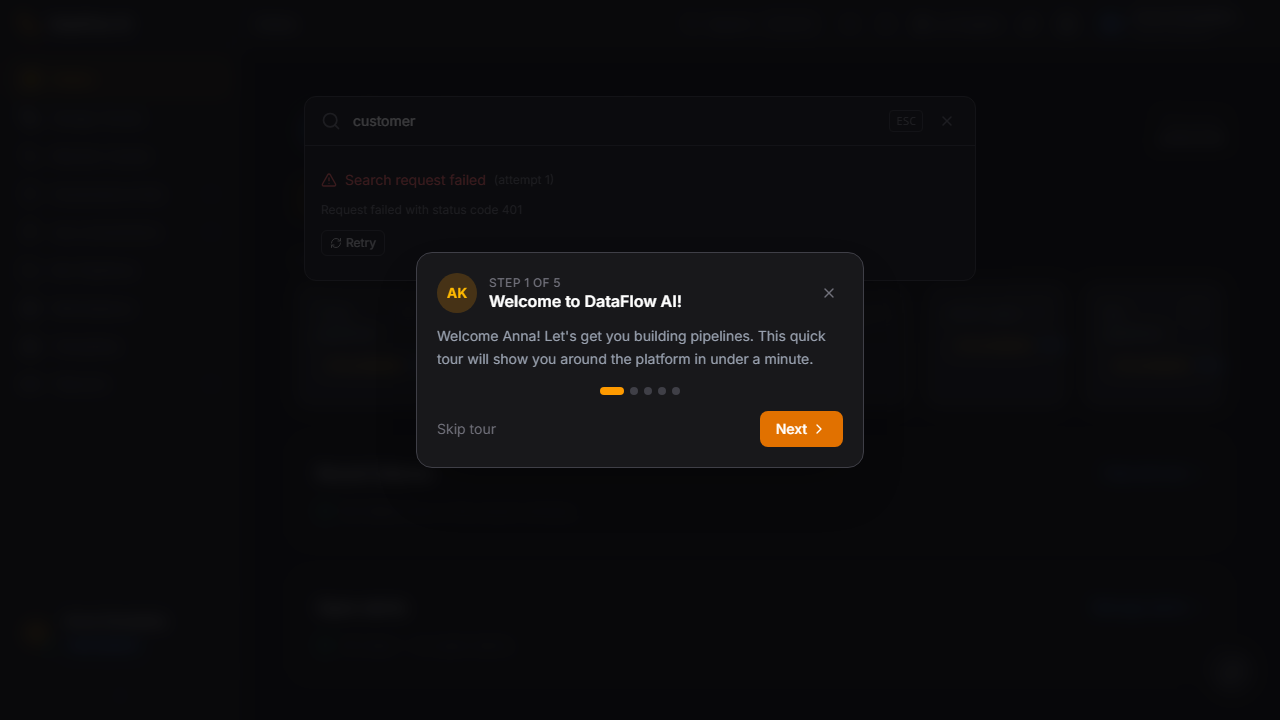
The Data Browser's search bar is the deep, governance-aware catalog search. Alongside it, the platform shell provides a lighter-weight Global Search overlay — a command-palette-style modal for jumping to anything anywhere in DataFlow AI without leaving the current page.
How it works
Press Cmd+K (macOS) or Ctrl+K (Windows/Linux) from anywhere in the application — or click the search trigger in the top bar — to open the overlay. It is a centered modal over a blurred backdrop, focused on a single text input.
| Behavior | Detail |
|---|---|
| Open / toggle | Cmd+K / Ctrl+K, or the top-bar search trigger |
| Close | Escape, or click the backdrop |
| Navigate | Arrow Up / Down to move the selection, Enter to jump to the highlighted result |
| Empty state | With no query typed, the overlay shows recent searches |
| Results | Filtered live as you type, grouped by category |
Result categories
Results are grouped into five categories, each with its own icon and color:
| Category | Icon color | Example result |
|---|---|---|
| Pipelines | blue | wf_Subscriber_Churn_v2 — Staging, pending approval |
| Tables | emerald | DIM_SUBSCRIBER_360 — Snowflake / DWH / 12.4M rows |
| Columns | amber | CUSTOMER_CHURN_SCORE — DIM_SUBSCRIBER_360.CHURN_SCORE, float64 |
| Users | purple | Anna Kowalska — Data Engineer, BI & Data Engineering |
| Settings | slate | Connection: Teradata DWH-MONA — JDBC, Active |
Global Search vs. the Data Browser
Use the Global Search overlay (Cmd+K) for fast navigation — jumping to a known pipeline, table, user, or setting. Use the Data Browser search bar for discovery and governance — ranked catalog results with facet filters, PII tags, certification badges, lineage, and quality. Global Search routes you to a destination; the Data Browser helps you understand and trust the data once you arrive.
The overlay is implemented by src/components/shell/GlobalSearchModal.tsx, opened from GlobalSearchTrigger.tsx in the top bar, with open state held in the shellStore.
Behind the scenes — API summary
| Capability | API module |
|---|---|
| Catalog tables & columns | api/catalog.ts |
| Ranked search | api/search.ts |
| Data products / marketplace | api/dataProducts.ts |
| Lineage graph | api/lineage.ts |
| Quality rules | api/quality.ts |
| PII tags | api/pii.ts |
| Certification | api/endorsements.ts |
| NL catalog Q&A | api/catalogAsk.ts (also surfaced via the AI Copilot) |
Data Browser UI components live in src/components/data-browser/ — including CatalogSearch, ConnectionTree, SchemaViewer, TableCard, ColumnDetail, DataProfile, and SampleDataPreview. Related shipped pages include DataMarketplacePage.tsx and DataProductDetail.tsx.
Glossary
Plain-language definitions of the terms used across the DataFlow AI documentation.
| Term | Definition |
|---|---|
| ETL | Extract, Transform, Load — copying data out of source systems, cleaning and reshaping it, and loading it into a destination warehouse. |
| ELT | Extract, Load, Transform — a variant where raw data is loaded into the warehouse first and transformed in place inside it. |
| Pipeline | An automated recipe — a graph of processing nodes — that reads from sources, transforms data, and writes it to destinations. |
| Node | A single processing box within a pipeline: a source, a transform, a quality check, or a target. |
| DAG | Directed Acyclic Graph — the flowchart shape of a pipeline; arrows point one way and never loop back. |
| Connector | A configured, reusable connection to an external data system such as an Oracle database or a Kafka cluster. |
| Source / Sink | A source node reads data into a pipeline; a sink (or target) node writes the finished data out. |
| Workspace | An isolated environment that scopes its own pipelines, connectors, rules, and members — like a project or team space. |
| Run | One single execution of a pipeline, with its own ID, status, timestamps, and logs. |
| Batch vs. Streaming | Batch pipelines run on a schedule and process a chunk of data at once; streaming pipelines run continuously, processing each record within seconds. |
| CDC | Change Data Capture — capturing each database row change (insert/update/delete) in real time from the database's transaction log, without re-scanning the table. |
| Push-down | An optimization that translates a transformation into native SQL and runs it inside the source or target database, so large volumes of data never travel across the network. |
| Write mode | How a target adds data: append (add rows), overwrite (replace all), or upsert/merge (update existing rows, insert new ones). |
| Checkpoint | A saved "you-are-here" marker partway through a run, allowing a failed run to resume instead of restarting. |
| SLA | Service Level Agreement — the agreed promise about how a pipeline should perform (completion time, success rate). |
| Lineage | The documented path of data from origin, through every transformation, to its destinations; "column-level" lineage tracks individual fields. |
| Catalog | A searchable directory of every table and column across all connected systems. |
| Profiling | Automatically computed statistics about a column — null rate, distinct count, min/max, mean, and so on. |
| Data quality rule | An automated check on a dataset, such as "this column must never be empty" or "this code must be 15 digits". |
| Quarantine | A holding area where rows that failed a blocking quality rule wait for a steward decision, instead of being loaded or lost. |
| PII | Personally Identifiable Information — data that can identify a real person (name, phone, PESEL); protected by GDPR. |
| PESEL | The Polish national identification number — highly sensitive PII handled under strict GDPR controls. |
| MSISDN | A mobile subscriber's phone number — the common key used to link telecom subscriber data together. |
| GDPR / RODO | The EU data-protection regulation (2016/679); "RODO" is its Polish-law name. |
| DSAR | Data Subject Access Request — a formal request by an individual to access, correct, or erase their personal data. |
| CDR | Call Detail Record — a record produced by a telecom network describing a call, SMS, or data session. |
| Data product | A curated, packaged, governed dataset prepared for direct consumption, published in the Data Marketplace. |
| Data contract | A versioned, agreed promise about a dataset's schema, types, and freshness, between a data producer and its consumers. |
| AI Copilot | The platform's conversational AI assistant — answers questions, writes SQL, builds pipelines, and diagnoses failures in plain language. |
| RAG | Retrieval-Augmented Generation — an AI technique that feeds the model relevant real catalog data so its answers are grounded in fact. |
| Migration | The automated conversion of legacy ETL workflows (Informatica PowerCenter, Alteryx) into DataFlow AI pipelines. |
| Push-down dialect | The specific SQL "flavour" of a target database (Teradata, Snowflake, Oracle, etc.) that the platform generates native SQL for. |
| Steward | The person responsible for data governance — quality, lineage, certification, privacy, and pipeline review. |
| SSO | Single Sign-On — logging in once with your corporate credentials to access the platform, with no separate password. |